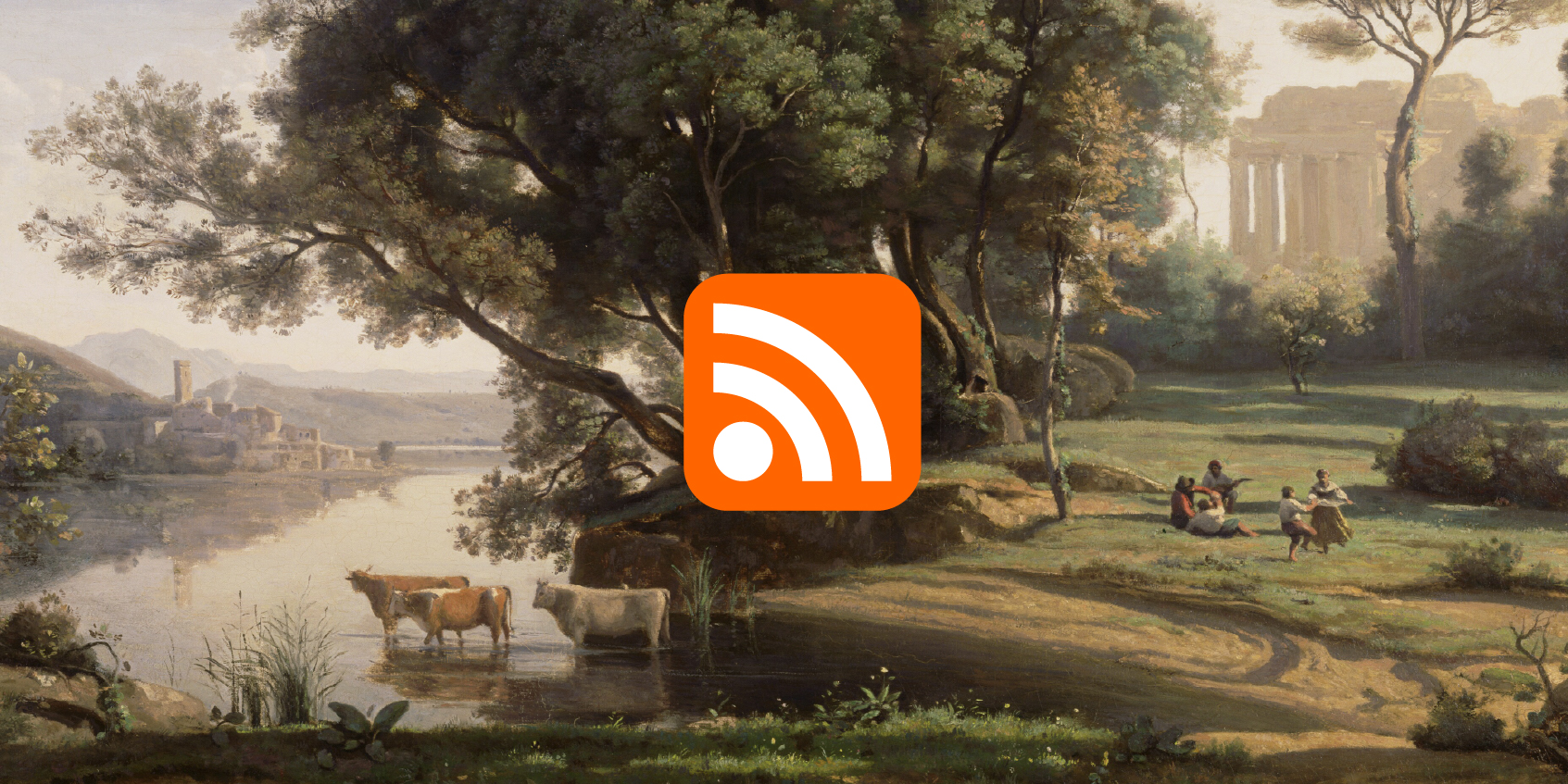
 I’m one of those people on the right, enjoying the outdoors after posting on my Jekyll blog.
Jean-Baptiste-Camille Corot: Italian Landscape, 1835
I’m one of those people on the right, enjoying the outdoors after posting on my Jekyll blog.
Jean-Baptiste-Camille Corot: Italian Landscape, 1835
My whole website runs on Jekyll, hosted on GitHub Pages. I like Jekyll because I understand it: Every single post is a Markdown file. All images live in one folder. Templates for posts use HTML, CSS, and a simple language called Liquid which I enjoy using.
Why Jekyll isn’t great for quick posting
I’ve written many articles in Markdown on long Saturday nights in front of my computer, and it has always worked well. But it’s also a bit of work:
- There’s no drag and drop to quickly add images. You have to put images in a specific folder and reference them correctly.
- Every post needs to have a front matter that specifies e.g. the thumbnail image, tags, or the categories your post is in. Adding (or copy/pasting) this front matter is tedious.
- Your posts need to have a correct file name that includes the publishing date, e.g. “2026-03-26-note.md”
- After writing posts, you need to commit and push them to GitHub — definitely more complicated than hitting “Publish” somewhere.
- All of this means that you’re dependent on your desktop computer. Writing and publishing on mobile phones is simply too tedious.
For my new Notes section, I wanted something quick. I wanted to open an app on the go, put in some thoughts or images, hit “Publish” and call it a day.
My solution for this? RSS.
RSS and the Tumblr app come to the rescue
RSS is amazing. I’ve been a RSS reader fan since Google Reader (RIP). It’s my favorite way to stay up to date on what other people post. Almost every blog comes with an RSS feed — even my old Tumblr blog. “Would it be possible,” I asked ChatGPT one evening last December, “to check this Tumblr blog RSS feed periodically, and if there’s new content, transform it into a Jekyll Markdown file and put it on my blog?” Yes, it said, and now I have the following setup:
- To post a blog post, I open the Tumblr app and write and publish a post.
- It gets published to an old Tumblr blog I have. It’s set to “not indexed”, so search engines shouldn’t mention it. I also told Tumblr that I don’t want my blog to appear in their search and recommendations.
- When I publish, the whole post content (text and links to the images) immediately becomes part of an RSS feed.
- I set up a GitHub Action with a Python script that checks this RSS feed every six hours for post IDs it doesn’t know yet.
- If there’s an unknown (meaning, new) post ID, it transforms the text of that post to Markdown and creates a new file in my
_notesfolder for it. The script also downloads the images into the right image folder in my blog setup. It then writes the post ID into an extra txt file, so that it doesn’t do the whole text and image processing for this post again the next time. - The GitHub Action then commits all changes.
And that’s it! Every post that lands in the _posts or _notes folder in GitHub gets published automatically. Within a minute or two after the Python script doing its thing, the post is live on /notes.
Why I like this workflow
There are lots of advantages to using the Tumblr app:
- It works on phones. Initially, I did quite a lot of research into using a Markdown-based writing app and GitHub on my phone – but opening two apps for one small note feels like a perfect excuse to just not post.
- Writing new posts looks and feels smooth. Formatting, uploading images, and publishing all works as nicely as you’d imagine from a blogging app with lots of money and people behind it.
- The editing experience doesn’t force me to have a title. My notes don’t have a title, so that’s neat. (The title is the date, which Jekyll gets from the file name, which the Python script writes based on the publishing date of the Tumblr post.)
- I can still add metadata to my posts, by creating rules in my Python script. For example, I add tags by adding a new line in my Tumblr post that begins with a hash, e.g. „#Data Vis #Elections“. I told my Python script to not include such a line in the content of my Markdown file, but extract the tags in that line for my front matter. I could do the same to add categories, a summary or title, a different publishing date or layout, etc.
- I don’t get sucked into doomscrolling. I’m not following other Tumblr blogs and really don’t care about the stuff I see in the feed when I open the Tumblr app.
It feels especially neat that I’m using Tumblr for the UI, but not for hosting my content (well, only for six hours max). If my Tumblr account got closed tomorrow, my content would still live on my site. I’d just move to another blogging platform and do the same trick.
The only disadvantage I can think of is that I can’t edit posts with the same workflow once they appear on my site. (It also feels a bit weird to have your posts on the web twice.)
The alternative: An Alfred workflow
For the times when I don’t want to wait for up to six hours, I also created an Alfred Workflow. It allows me to write my blog post in iA Writer and drag images in there from wherever I want (they won’t show up, but their path will). I then save the note as „note.md“ on my desktop and run the Alfred workflow „Publish blog post!“ — which moves any „note.md“ files on my desktop to my _notes folder, renames it, adds a front matter, puts the images in the right folder, and commits and pushes the post.
And that’s it! As so often, setting up that GitHub Action and Python script was mostly possible thanks to Gemini, Claude, and ChatGPT. (I’m kind of proud that at least the idea came from me.)